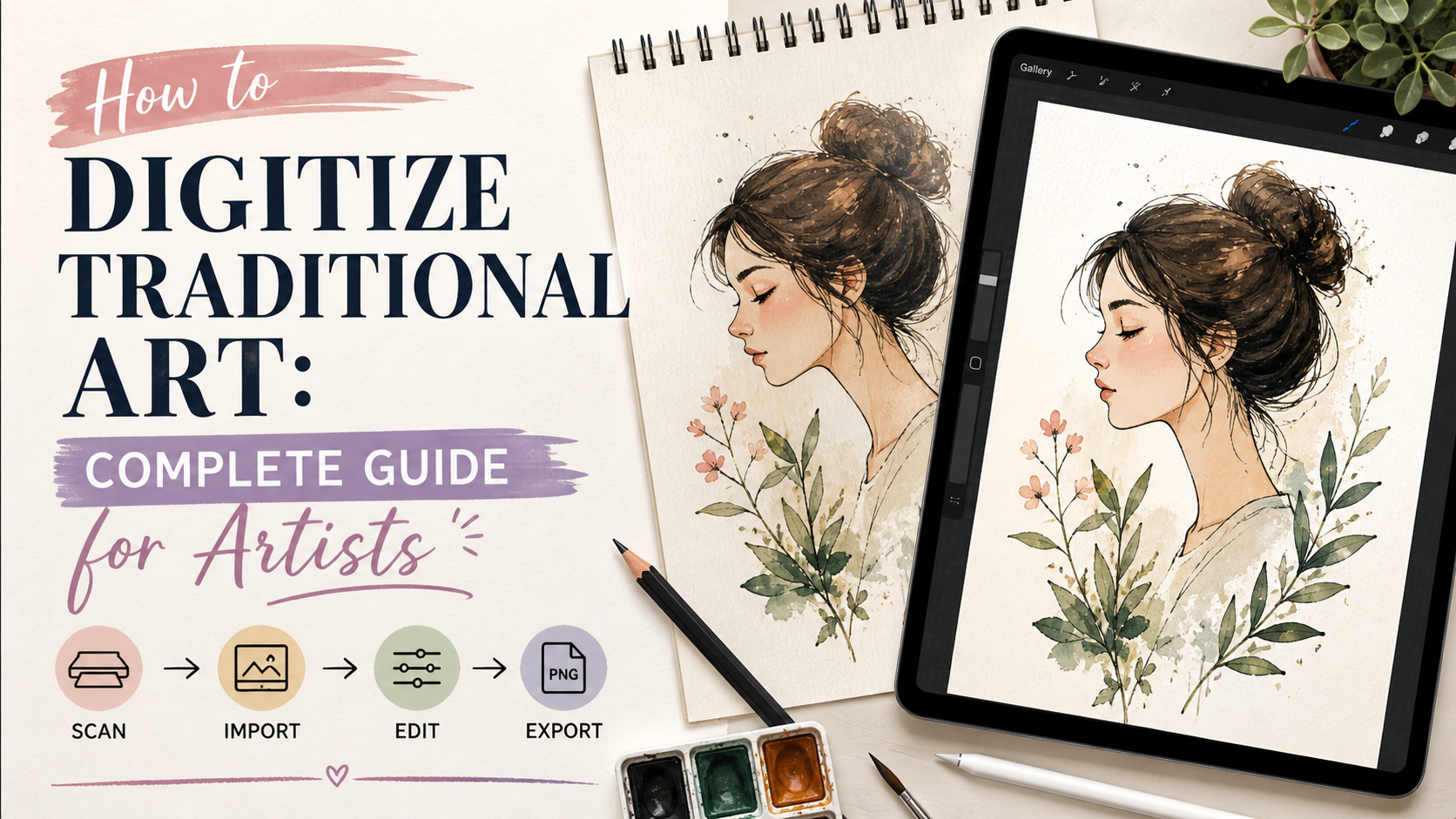
Learning how to digitize traditional art has become essential for artists, whether you’re looking to share your paintings online, create prints, or preserve your artwork digitally. Converting your physical paintings, drawings, and sketches into high-quality digital files opens up countless opportunities for showcasing and selling your work. This comprehensive guide walks you through everything you need to know about digitizing traditional art, from choosing the right equipment to mastering professional techniques that preserve every detail of your original masterpiece.
Key Points Summary

- Multiple methods available: Photography, scanning, and professional services each offer unique advantages
- Equipment matters: DSLR cameras, flatbed scanners, and proper lighting significantly impact quality
- Resolution is critical: Aim for 300 DPI minimum for print-quality digitization
- Color accuracy: Proper calibration and color correction ensure faithful reproduction
- Cost range: DIY methods start at $200, professional services range from $50-$500+ per piece
- Applications: Digital files enable online portfolios, print-on-demand, NFTs, and archival preservation
Why Digitize Your Traditional Art?
Digitizing traditional art transforms your physical creations into versatile digital assets. In today’s art world, having digital versions of your work isn’t just convenient—it’s necessary. Whether you paint with oils, acrylics, watercolors, or create detailed pencil drawings, converting these pieces to digital format preserves them for future generations while expanding your creative possibilities.
Artists who digitize their work gain access to multiple revenue streams. You can sell prints without depleting your original inventory, showcase your portfolio on social media platforms, submit work to online galleries and competitions, and even create merchandise featuring your designs. Digital files also serve as insurance against loss or damage to your physical artwork.
The digitization process captures your artwork’s textures, colors, and fine details in a format that’s easy to share, store, and reproduce. Many artists use their digital files to create limited edition prints, greeting cards, or canvas prints that generate passive income long after the original painting is sold.
Understanding Digital Art File Formats
Before diving into digitization methods, you need to understand which file formats work best for different purposes. The format you choose affects image quality, file size, and compatibility with various platforms and printing services.
Essential File Formats for Artists
| Format | Best For | Pros | Cons |
|---|---|---|---|
| JPEG (.jpg) | Web sharing, social media | Small file size, universal compatibility | Lossy compression, quality degrades with editing |
| PNG (.png) | Graphics with transparency, web use | Lossless compression, supports transparency | Larger than JPEG, not ideal for print |
| TIFF (.tif) | Professional printing, archival | Lossless quality, industry standard | Very large files, limited web support |
| PSD (.psd) | Editing and layered work | Preserves layers, maximum flexibility | Proprietary format, large file sizes |
| PDF (.pdf) | Client presentations, printing | Universal compatibility, maintains quality | Not easily editable |
For most artists, the workflow involves capturing your art in TIFF format for maximum quality, then converting to JPEG for web sharing and keeping the TIFF as your master archive file. This approach ensures you maintain the highest quality version while creating optimized files for different uses.
Method 1: Photography – The Versatile Approach
Photography offers the most flexible method for digitizing traditional art, especially for large paintings, textured works, or pieces with impasto techniques. With the right equipment and technique, you can achieve professional-quality results from your home studio.
Equipment You’ll Need

Camera Options:
- DSLR or mirrorless camera with manual controls (recommended)
- High-quality smartphone camera (12MP+) for smaller works
- Tripod for stability and consistent framing
- Remote shutter release or timer to eliminate camera shake
Lighting Setup:
- Two matching light sources (LED panels or continuous bulbs)
- 5000K-6500K color temperature for daylight accuracy
- Diffusers to soften harsh shadows
- Gray card for white balance reference
Professional photographers recommend shooting in RAW format when possible. RAW files capture maximum color information and provide greater flexibility during post-processing compared to JPEG. Even smartphone cameras now offer RAW shooting modes in their pro settings.
Step-by-Step Photography Process
- Prepare Your Space: Choose a room with minimal ambient light that you can control. Mount or position your artwork vertically against a neutral-colored wall. Ensure the painting is completely flat and parallel to your camera sensor.
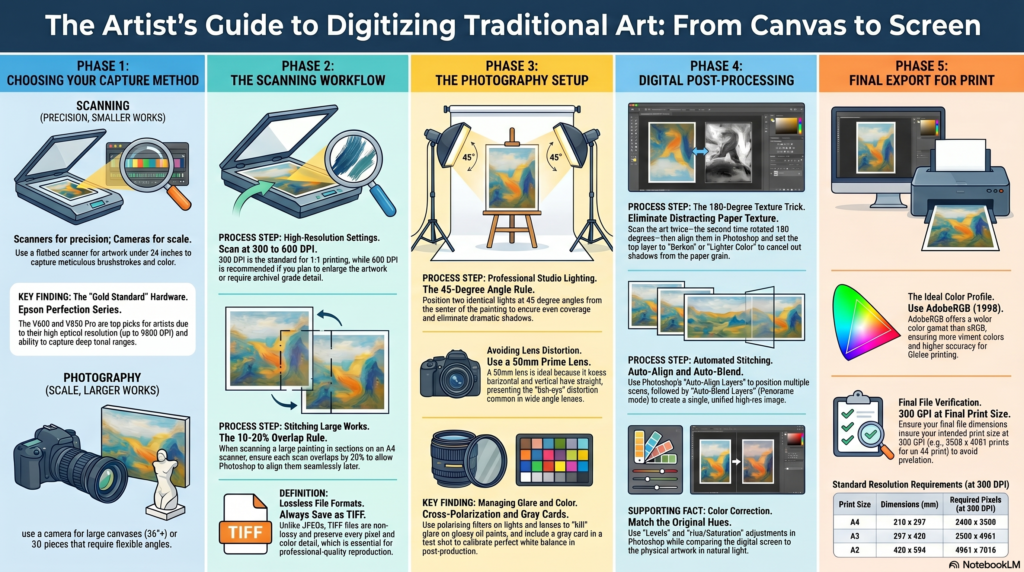
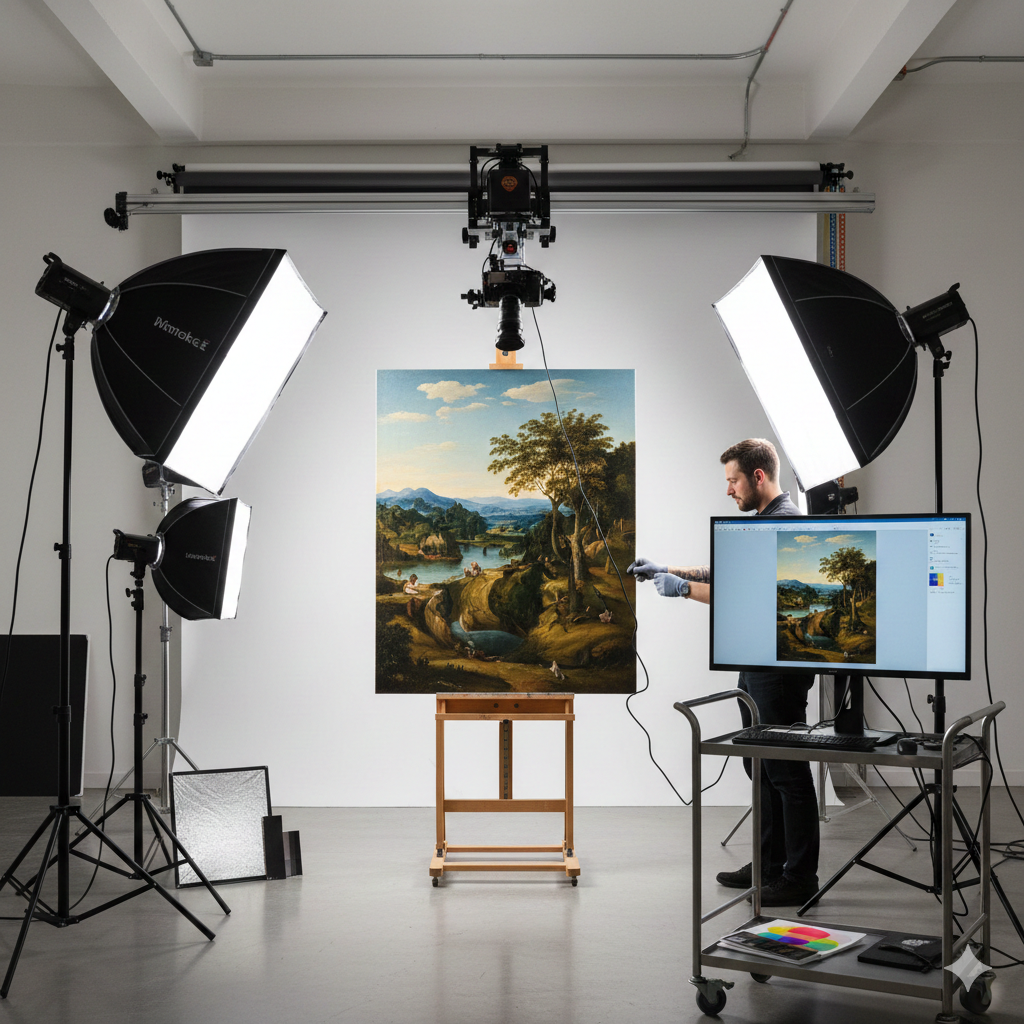
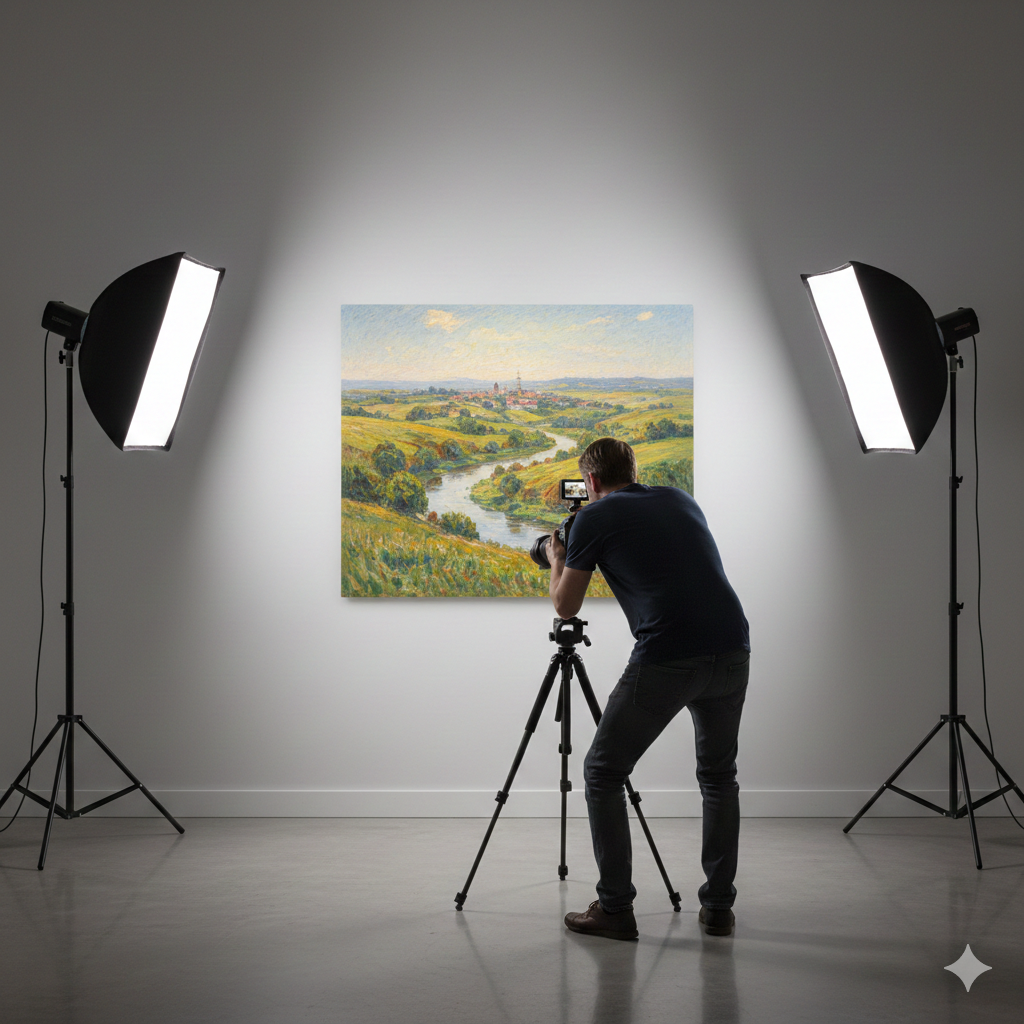
- Set Up Lighting: Position your two lights at equal distances from the artwork, creating 45-degree angles on both sides. This configuration minimizes glare and ensures even illumination across the entire surface. For oil paintings with glossy finishes, you may need to adjust angles slightly to eliminate hotspots.
- Configure Camera Settings:
- ISO: 100-200 (lowest native ISO for minimal noise)
- Aperture: f/8 to f/11 (optimal sharpness across the frame)
- Shutter speed: Whatever provides correct exposure (use tripod)
- White balance: Custom setting using gray card
- Focus: Manual focus on center of artwork
- Frame and Shoot: Position your camera so the lens is perfectly perpendicular to the artwork’s center. Fill your frame with the artwork, leaving a small border. Take multiple shots at different exposures (bracketing) to ensure you capture the full tonal range.
- Verify Results: Check your images immediately using your camera’s LCD screen. Zoom in to inspect focus, examine corners for edge distortion, and verify even lighting across the entire piece.
The key to successful art photography is consistency. Once you establish a setup that works, document your settings and positioning so you can replicate results across multiple pieces. Many artists create a dedicated photography station in their studio specifically for this purpose.
Method 2: Scanning – Precision for Flat Art
Flatbed scanners excel at digitizing drawings, watercolors, prints, and other flat artwork up to about 11×17 inches. Scanners capture incredible detail and provide the most accurate color reproduction without worrying about lighting or perspective distortion.

Choosing the Right Scanner
Modern flatbed scanners offer impressive specifications at reasonable prices. Look for these essential features:
Key Scanner Specifications:
- Optical resolution: Minimum 2400 DPI (dots per inch), preferably 4800+ DPI
- Color depth: 48-bit for maximum color information
- Scan bed size: Letter (8.5×11″), Legal (8.5×14″), or Tabloid (11×17″)
- Dynamic range: Higher numbers capture more shadow and highlight detail
- Software: TWAIN-compliant drivers with professional scanning software
Epson and Canon manufacture excellent scanners in the $200-$800 range suitable for art digitization. Professional-grade models from these manufacturers can handle thicker materials and offer superior color accuracy through built-in calibration systems.
Optimal Scanning Technique
- Clean Everything: Use a microfiber cloth to remove dust from both the scanner glass and your artwork. Even tiny particles create visible artifacts in high-resolution scans.
- Position Artwork: Place your piece face-down on the scanner bed. Align edges with the scanner’s registration marks for perfect orientation. For watercolor paintings, ensure the paper lies completely flat—you may need to weight down curled corners gently.
- Configure Scan Settings:
- Resolution: 300 DPI for prints, 600+ DPI for archival quality
- Color mode: 48-bit color (or highest available)
- File format: TIFF uncompressed
- No automatic adjustments or sharpening
- Descreening: Off (unless scanning printed materials)
- Preview and Adjust: Use the preview function to select only your artwork area. This reduces file size and eliminates unnecessary background scanning. Check for proper alignment before committing to the full scan.
- Perform Final Scan: Initiate your scan and remain patient—high-resolution scans take several minutes. Don’t move the scanner or artwork during this process.
Scanning multiple pieces in one session increases efficiency. Once you dial in the perfect settings for your type of artwork, save them as a preset for future use. Many scanner software programs allow custom profiles for different art mediums.
“The difference between a good scan and a great scan often comes down to preparation. Taking an extra minute to clean your glass and align your artwork perfectly saves hours of correction work later.”
Method 3: Professional Scanning Services

For valuable artwork, large-scale pieces, or when ultimate quality matters, professional scanning services provide unmatched results. These specialists use high-end equipment that captures every nuance of your original work with precision impossible to achieve with consumer gear.
When to Choose Professional Services
Professional digitization makes sense when:
- Your artwork exceeds scanner bed size (larger than 11×17″)
- The piece has significant texture or three-dimensional elements
- You need color-managed, exhibition-quality reproductions
- The artwork’s value justifies the investment ($50-$500+ per piece)
- You lack equipment, time, or expertise for DIY methods
Professional services typically use drum scanners, large-format flatbed scanners, or medium-format digital backs on specialized copy stands. These systems capture detail and color accuracy that surpasses even professional DSLR setups.
What to Expect from Professional Services
Service Offerings:
- High-resolution scanning (600-1200 DPI standard)
- Color-managed workflow with calibrated equipment
- Professional retouching and color correction
- Multiple file format delivery (TIFF, JPEG, PSD)
- Metadata embedding (artist info, copyright, dimensions)
- Secure handling and insurance for valuable pieces
Expect to pay $50-$150 for standard artwork (up to 24×36″), with prices increasing for larger pieces or rush services. Some services offer package deals if you’re digitizing multiple pieces simultaneously. Universities, museums, and specialized photography studios often provide these services.
When selecting a professional service, request sample scans to evaluate their quality. Discuss your intended use—whether for fine art reproduction prints, online portfolio, or archival preservation—as this affects resolution and color management requirements.
Resolution and DPI: Getting the Numbers Right
Understanding resolution remains one of the most confusing aspects of art digitization. The resolution you need depends entirely on your intended output, and getting this right the first time prevents wasted effort and disappointing results.
Resolution Requirements by Use Case
Print Applications:
- Professional gallery prints: 300-600 DPI at final size
- Home/office prints: 200-300 DPI at final size
- Large format (posters, banners): 150-200 DPI acceptable due to viewing distance
- Publication reproduction: 300 DPI minimum at published size
Digital Applications:
- Website/portfolio: 72-150 DPI, optimized file size (under 500KB)
- Social media: 1080-2048 pixels on longest side
- Email sharing: 800-1200 pixels longest dimension
- Digital backup/archive: Maximum available resolution
Here’s a crucial concept: when you scan at 300 DPI, you’re capturing 300 dots per linear inch. A 10×10 inch painting scanned at 300 DPI produces a 3000×3000 pixel image. That same file can print beautifully at 10×10 inches but will show pixelation if enlarged to 20×20 inches without upscaling.
Calculating Your Resolution Needs
Use this formula: (Desired print width in inches) × (DPI requirement) = Minimum pixel width needed
Example: You want to create 16×20 inch prints of your 8×10 inch watercolor at 300 DPI quality.
- Calculation: 20 inches × 300 DPI = 6000 pixels minimum on longest side
- Your 8×10 inch original needs scanning at: 6000 pixels ÷ 10 inches = 600 DPI
Always scan at the highest resolution you’ll potentially need. You can always downsample a high-resolution file for smaller applications, but upscaling a low-resolution scan produces poor results. Storage is cheap—reshooting or rescanning your entire portfolio is expensive and time-consuming.
For artists creating acrylic paintings intended for both online sharing and print sales, scan at 600 DPI. This provides flexibility for various applications from a single master file.
Post-Processing: From Raw Scan to Polished Digital File

Capturing your image represents only half the digitization process. Post-processing transforms your raw scan or photograph into a polished digital file that accurately represents your original artwork. This stage requires careful attention to maintain authenticity while correcting technical imperfections.
Essential Post-Processing Software
Professional Options:
- Adobe Photoshop CC: Industry standard with comprehensive tools
- Adobe Lightroom Classic: Excellent for batch processing photos
- Capture One: Professional photography editing with superior color handling
- Affinity Photo: One-time purchase alternative to Photoshop
Free Alternatives:
- GIMP: Open-source image editor with extensive capabilities
- Darktable: RAW processing for photographs
- RawTherapee: Advanced RAW conversion
Most artists find Photoshop or Lightroom provides the best balance of capability and learning curve. Educational discounts significantly reduce subscription costs for students and teachers.
Step-by-Step Post-Processing Workflow
1. Crop and Straighten
Begin by cropping your image to include only the artwork, removing any background, scanner edges, or photography setup visible in the frame. Use your software’s straighten tool to ensure perfectly level horizons and vertical lines. Even slight tilts become obvious in the final presentation.
2. Correct Perspective and Distortion
For photographed artwork, lens distortion can cause straight lines to bow and corners to appear rounded. Photoshop’s “Lens Correction” filter or Lightroom’s “Transform” panel fix these issues automatically. For extreme distortion, the “Warp” tool allows manual corner adjustment to restore perfect rectangles.
3. Adjust Exposure and Tonal Range
Evaluate your histogram—the graph showing tonal distribution from black (left) to white (right). A good scan uses the full tonal range without clipping shadows or highlights. Adjust exposure, highlights, shadows, whites, and blacks to match your original artwork’s appearance.
For realistic painting techniques, maintaining accurate tonal relationships is critical. Compare your screen image directly to the physical artwork under consistent lighting conditions.
4. Color Correction and White Balance
This step determines whether your digital file accurately represents your original colors. If you photographed with a gray card, use it as a reference point for setting white balance. For scans, compare the digital file to your physical artwork under standard daylight viewing conditions (5000K-6500K).
Adjust color balance, vibrancy, and saturation minimally. Your goal is matching reality, not creating a “better” version. Over-saturation and excessive contrast are common mistakes that make digital files look artificial.
5. Sharpening and Noise Reduction
Apply sharpening judiciously to restore detail lost during scanning or compression. Use “Smart Sharpen” or “Unsharp Mask” in Photoshop, focusing on the Amount (50-150%), Radius (0.5-2 pixels), and Threshold settings. Excessive sharpening creates obvious halos around edges.
For photographed artwork, especially at higher ISOs, apply noise reduction to smooth grain without obliterating fine details. Modern AI-powered tools like Topaz DeNoise AI produce excellent results for artwork digitization.
6. Spot Removal and Cleanup
Remove dust spots, scanner artifacts, or minor imperfections using the clone stamp or healing brush tools. Be cautious not to remove intentional texture or details from your artwork—only eliminate technical scanning/photography defects.
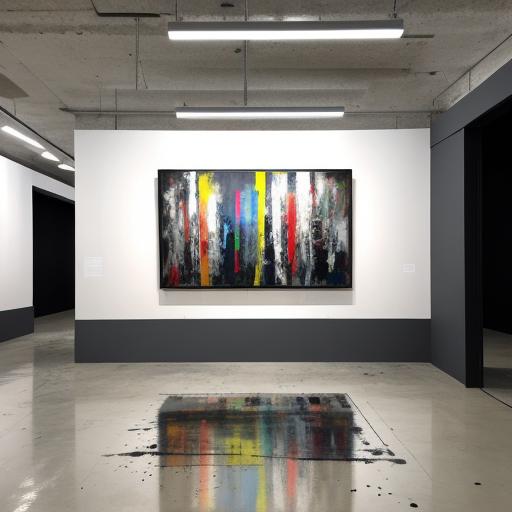
Caption: Proper post-processing corrects perspective distortion and ensures accurate color reproduction
7. Save Master and Derivative Files
Save your fully processed file as an uncompressed TIFF—this becomes your master archive file. Create derivative versions for specific uses:
- High-resolution JPEG (quality 10-12) for printing
- Web-optimized JPEG (quality 8-10, properly sized) for online sharing
- Color-managed files with embedded ICC profiles for professional printing
Implement a consistent file naming system: “ArtistName_ArtworkTitle_Date_Resolution.format” keeps your digital archive organized as your collection grows.
Advanced Techniques for Challenging Artwork
Some traditional art presents unique digitization challenges requiring specialized approaches. Understanding these techniques ensures consistent quality across all your artwork types.
Textured and Impasto Paintings
Heavily textured paintings with thick paint application (common in palette knife painting) require special consideration. Standard flatbed scanning won’t work—photography becomes essential.
Technique Tips:
- Use cross-polarized lighting to minimize glare from glossy surfaces
- Shoot at slight angles (5-10 degrees) and composite multiple shots
- Increase depth of field (f/11-f/16) to keep entire texture in focus
- Consider focus stacking for extreme textures—combine multiple exposures focused at different depths
Some artists photograph their textured work at angles to capture the three-dimensionality, creating supplementary detail shots that showcase the artwork’s physical depth alongside the straight-on digitization.
Metallic and Reflective Surfaces
Artwork incorporating metallic paints, gold leaf, or reflective materials requires careful lighting management:
- Position lights to capture metallic shimmer without creating hotspots
- Use polarizing filters on your camera lens to control reflections
- Create separate exposures capturing different light angles
- Composite images in post-processing to show metallic effect
- Consider providing both “matte” and “metallic shimmer” versions
Large-Scale Artwork
For paintings exceeding your scanning or photography capabilities:
Stitched Photography:
- Photograph the artwork in overlapping sections (30-40% overlap)
- Use consistent settings and lighting for all sections
- Employ photo-stitching software (Adobe Photoshop, PTGui, Hugin)
- Process the stitched panorama as a single large image
This technique works excellently for murals, large abstract paintings, or any oversized artwork. Professional panoramic stitching creates seamless composite images from dozens of individual photographs.
Varnished Paintings
Gloss varnish creates challenging reflections. Options include:
- Waiting until varnish fully cures (2-4 weeks) for minimal tackiness
- Using cross-polarization (polarized lights + polarizing filter)
- Photographing before varnishing, then adding protective coating afterward
- Professional services with specialized glare-reduction equipment
Color Management: Ensuring Accurate Reproduction

Color management ensures your digital files look consistent across different devices and print accurately. This technical aspect separates amateur digitization from professional-quality results.
Understanding Color Spaces
Color spaces define the range of colors (gamut) your files can represent:
- sRGB: Standard web color space, smallest gamut, universal device compatibility
- Adobe RGB: Larger gamut including more saturated colors, better for printing
- ProPhoto RGB: Widest gamut, used for professional editing and archival
For most artists, capture in Adobe RGB (offers more colors than sRGB), edit in Adobe RGB or ProPhoto RGB, then convert to sRGB for web sharing and Adobe RGB for professional printing. This workflow maintains maximum color information throughout the process.
Monitor Calibration
An uncalibrated monitor displays colors incorrectly, making accurate editing impossible. Invest in a hardware calibration device ($150-$300) like X-Rite ColorMunki or Datacolor SpyderX:
- Calibrate monthly for consistent color
- Set target white point to 6500K (D65)
- Target gamma of 2.2 (standard for photos)
- Target luminance of 120 cd/m² for print work
After calibration, your monitor displays colors accurately, ensuring your digital files match your intentions when printed or viewed on other calibrated displays.
ICC Profiles for Printing
ICC profiles describe how specific printers and papers reproduce colors. When ordering professional prints:
- Request ICC profiles from your print service
- Soft-proof in Photoshop using these profiles
- Adjust your file if colors shift during soft-proofing
- Embed the correct profile when submitting print files
This technical step prevents disappointing surprises when your prints arrive looking different from your screen.
Cost Breakdown: DIY vs. Professional Services
Understanding the financial investment helps artists make informed decisions about their digitization approach.
DIY Setup Costs
Budget Smartphone Setup ($0-$300):
- Modern smartphone (already owned): $0
- Basic tripod: $20-$50
- Clip-on LED lights (2): $30-$60
- Editing apps (Snapseed, VSCO free versions): $0
- Total: $50-$110
Mid-Range Photography Setup ($500-$1,500):
- DSLR/mirrorless camera (used): $300-$600
- Standard zoom lens: $100-$300
- Sturdy tripod: $50-$150
- Two LED panel lights: $150-$400
- Gray card and accessories: $20-$50
- Total: $620-$1,500
Professional Home Setup ($2,000-$5,000+):
- Professional camera body: $800-$2,000
- Sharp lens (24-70mm f/2.8): $600-$1,200
- Professional lighting system: $500-$1,500
- Color calibration tools: $150-$300
- Professional editing software: $120-$600/year
- Total: $2,170-$5,600
Quality Scanner Setup ($200-$800):
- Flatbed scanner (up to 11×17″): $200-$800
- Calibration targets: $50-$150
- Scanning software: $0-$200
- Total: $250-$1,150
Professional Service Costs
- Standard artwork (up to 24×36″): $50-$150 per piece
- Large artwork (36×60″): $150-$300 per piece
- Oversized/complex pieces: $300-$500+ per piece
- Rush services: Add 25-50% premium
- Additional services (color correction, retouching): $25-$100 extra
For artists with extensive portfolios, DIY equipment pays for itself quickly. Digitizing just 10-20 pieces through professional services costs as much as purchasing quality DIY equipment. However, for occasional needs or extremely valuable pieces, professional services remain the safer choice.
Common Mistakes to Avoid
Learning from others’ errors saves time and frustration. Watch out for these frequent pitfalls:
1. Insufficient Resolution Scanning at 72 DPI “for the web” limits future options. Always capture maximum resolution—you can downsample later but cannot add detail to low-resolution files.
2. Over-Processing Aggressive saturation, contrast, and sharpening makes digital files look artificial. Subtle adjustments that maintain the original’s character always outperform dramatic enhancements.
3. Ignoring Color Management Skipping monitor calibration and ICC profiles leads to prints that don’t match your screen. This technical step saves expensive reprinting costs.
4. Poor Lighting for Photography Uneven lighting, glare, or wrong color temperature ruins photographs. Invest time in proper lighting setup—it makes the difference between amateur and professional results.
5. Not Backing Up Master Files Hard drives fail. Cloud storage (Google Drive, Dropbox, Backups) provides essential redundancy. Follow the 3-2-1 rule: 3 copies, 2 different media types, 1 off-site location.
6. Inconsistent File Organization Haphazard naming and folder structures make finding files frustrating. Establish a system from the beginning: organize by year, project, or medium, with consistent naming conventions.
7. Compressing Master Files Saving masters as heavily compressed JPEGs destroys quality. Always keep uncompressed TIFFs as archival masters, creating compressed versions only for distribution.
Applications: What You Can Do with Digital Files
Digitized artwork unlocks numerous creative and commercial opportunities:
Building Your Online Presence
- Portfolio websites: Showcase your complete body of work professionally
- Social media: Share work-in-progress shots, finished pieces, detail close-ups
- Art marketplaces: List work on Etsy, Saatchi Art, Artfinder
- Instagram & Pinterest: Build following through consistent posting
- Virtual exhibitions: Participate in online galleries and competitions
Generating Revenue
- Print-on-demand: Services like Printful, Society6, Redbubble handle production/shipping
- Limited edition prints: Sell signed, numbered prints maintaining scarcity value
- Licensing: License designs to manufacturers, publishers, or businesses
- NFTs: Convert artwork to blockchain-based digital collectibles
- Merchandise: Apply designs to phone cases, apparel, home decor
- Digital downloads: Sell high-resolution files for personal use
Practical Applications
- Grant applications: Submit digital files to funding organizations
- Press kits: Provide high-quality images for media coverage
- Copyright registration: Official digital records protect your intellectual property
- Archive/insurance: Document entire portfolio for insurance claims or estate planning
- Time-lapse creation: Combine progress photos into captivating videos
Many successful artists generate more income from prints and licensing than from original artwork sales. Your digital files become assets that continue earning long after the original piece finds a home.
Protecting Your Digital Artwork
Once you create high-quality digital files, protecting them from theft and unauthorized use becomes essential.
Copyright Basics
Copyright protection applies automatically to your artwork the moment you create it—no registration required. However, formal registration with the U.S. Copyright Office provides legal advantages:
- Enables filing infringement lawsuits in federal court
- Provides statutory damages (up to $150,000 per infringement)
- Establishes public record of your copyright claim
- Costs $65 for online registration (covers multiple works in a collection)
Watermarking Strategies
For online sharing, watermarks deter casual theft while maintaining visual appeal:
- Subtle corner watermarks: Small, translucent logo/signature
- Embedded watermarks: Barely visible marks across the image
- Intrusive watermarks: Large, obvious marks (reduces shareability but prevents theft)
- Metadata watermarks: Invisible information embedded in file data
Consider your goals—maximizing engagement often means minimal watermarking, accepting slight theft risk. For valuable works, more prominent protection makes sense.
File Sharing Best Practices
- Web images: 1500-2000 pixels maximum, 72-150 DPI, watermarked
- Client proofs: Watermarked, lower resolution until payment received
- Print vendors: Submit only to reputable services with clear terms
- Contracts: Always use licensing agreements specifying usage rights
- Reverse image search: Regularly check Google Images for unauthorized use
Digital files enable your business, but strategic protection prevents others from profiting from your creative work without permission.
Frequently Asked Questions
What DPI should I scan my artwork at?
Scan at 300 DPI minimum for print-quality reproduction, or 600 DPI if you plan to create large prints or need maximum detail. For archival purposes, 600-1200 DPI captures every nuance of your original artwork. Remember that higher DPI creates larger files but provides more flexibility for future uses.
Can I digitize artwork with my smartphone?
Yes, modern smartphones (12MP or higher) can produce acceptable results for smaller artwork and web use. Use proper lighting, keep the phone perfectly perpendicular to the artwork, and shoot in RAW mode if available. However, dedicated cameras or scanners produce superior quality for professional printing and large-scale reproduction.
How do I photograph large paintings that don’t fit on my scanner?
Use the stitched photography technique: photograph the artwork in overlapping sections with consistent lighting and camera settings, then use photo-stitching software like Adobe Photoshop or PTGui to combine them into one seamless high-resolution image. Professional services also offer large-format scanning for oversized pieces.
What’s the difference between scanning and photographing artwork?
Scanning provides more accurate color reproduction and eliminates perspective distortion, making it ideal for flat artwork under 11×17 inches. Photography offers flexibility for larger pieces, textured artwork, and works that can’t be placed on a flatbed scanner. Photography requires more skill in lighting and camera settings but handles any size artwork.
How much does professional art digitization cost?
Professional services typically charge $50-$150 for standard artwork (up to 24×36″), $150-$300 for large pieces (36×60″), and $300-$500+ for oversized or complex works. Additional services like color correction and retouching add $25-$100. Compare quotes from multiple providers and request sample scans before committing.
Do I need to calibrate my monitor for art digitization?
Yes, monitor calibration is essential for accurate color editing. Without calibration, your monitor may display colors incorrectly, leading to poor editing decisions and prints that don’t match your expectations. Hardware calibration devices ($150-$300) ensure your screen accurately represents colors, crucial for professional-quality digitization.
What file format should I save my digitized artwork in?
Save your master file as an uncompressed TIFF—this preserves maximum quality for archival purposes. Create high-quality JPEGs (quality 10-12) for printing and web-optimized JPEGs (quality 8-10) for online sharing. Keep all versions organized, with the TIFF serving as your permanent master from which you create all derivative files.
How can I prevent glare when photographing varnished paintings?
Use cross-polarized lighting—place polarizing filters over your light sources and add a circular polarizing filter to your camera lens. Position lights at 45-degree angles to the artwork and adjust the polarizer until glare disappears. Alternatively, photograph before varnishing or use a professional service with specialized anti-glare equipment.
Can I sell prints from my digitized artwork?
Yes, high-quality digital files enable you to sell prints through print-on-demand services, directly through your website, or at art fairs and galleries. Ensure your files meet the required resolution (300 DPI at print size) and use proper color management for accurate reproduction. Many artists generate significant income from print sales while retaining their original artwork.
How do I organize and backup my digital art files?
Implement a consistent file naming system including artist name, artwork title, date, and resolution. Organize folders by year, medium, or project. Follow the 3-2-1 backup rule: maintain 3 copies of each file, on 2 different storage types (external hard drive, cloud storage), with 1 copy off-site. Cloud services like Google Drive, Dropbox, or specialized art portfolio platforms provide reliable backup solutions.
Conclusion
Learning how to digitize traditional art empowers you to preserve, share, and monetize your creative work effectively in 2025. Whether you choose photography, scanning, or professional services, the key is understanding your specific needs and selecting the method that delivers the quality required for your goals. By investing in proper equipment or services, mastering post-processing techniques, and implementing smart file management, you transform your physical artwork into versatile digital assets that expand your artistic opportunities exponentially.
The digitization process—from initial capture through final archival storage—requires attention to detail and technical knowledge, but the rewards justify the effort. Your digital files become the foundation for online portfolios, print sales, licensing opportunities, and long-term preservation. As technology continues evolving, artists who embrace digitization position themselves for success in an increasingly digital art marketplace. Start with one piece, refine your process, and gradually build a comprehensive digital archive of your entire creative portfolio. The time you invest in mastering how to digitize traditional art pays dividends throughout your artistic career.
Citations
- Adobe. (2024). “Understanding Resolution for Print and Digital Images.” Adobe Help Center. https://helpx.adobe.com/photoshop/using/image-size-resolution.html
- Epson America. (2024). “Professional Scanning Tips for Artists.” Epson Professional Imaging. https://epson.com/professional-imaging-scanning-guide
- Digital Photography School. (2024). “How to Photograph Artwork: Complete Guide to Art Reproduction.” https://digital-photography-school.com/photograph-artwork/
- Smithsonian Institution. (2024). “Best Practices for Digital Image Capture.” Smithsonian Digitization Standards. https://www.si.edu/digitization
- X-Rite Incorporated. (2024). “Color Management for Digital Photography.” X-